
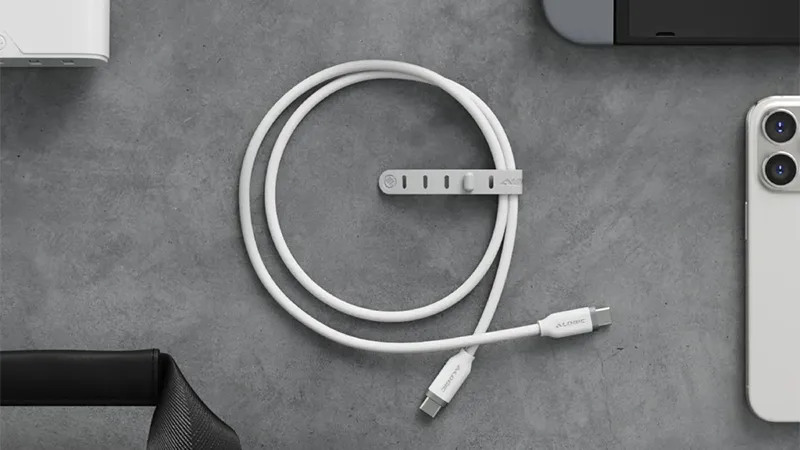
USB-C was supposed to make life easier. One connector for your phone, tablet, computer, headphones, and almost everything else we use. The problem is that two USB-C cables that look exactly the same can be built for completely different purposes.
One cable may be excellent for charging a phone but slow when you connect an external SSD. Another may handle fast data transfer, laptop charging, and video to an external display. Add different chargers, power levels, and cable quality, and the seemingly simple USB-C connector quickly becomes confusing. Here are five common mistakes worth avoiding.
1. Don’t assume all USB-C cables are the same
This is probably the biggest misunderstanding about USB-C. The connector tells you very little about what the cable can actually do. Two cables can have USB-C on both ends and look nearly identical, while their performance is vastly different. That applies to how quickly they can transfer data, how much power they can deliver, and whether they can send video to an external display.
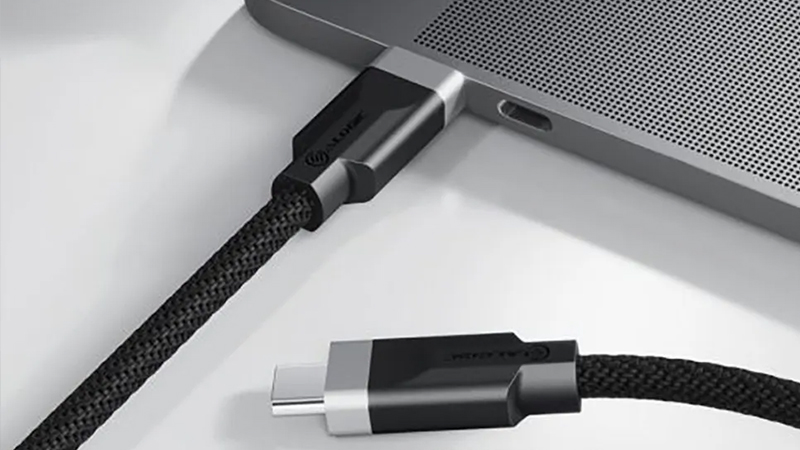
ALOGIC’s range is a good example. An Elements PRO USB-C to USB-C cable is mainly made for everyday charging and supports data transfer up to 480 Mbps. Fusion Series USB-C 3.2 Gen 2 looks like the same type of cable on the surface, but it can transfer data at up to 20 Gbps, deliver up to 100 W, and output 4K video at 60 Hz. In other words, it’s the use case, not the shape of the connector, that should decide which cable you choose.
2. Don’t buy a cable based only on the wattage on the box
High power is useful if you want to charge a laptop, but that does not automatically mean the cable is better at everything else. A cable can be built to handle high charging power while still using a much slower data standard. If the cable is only going to sit by the bed and charge a phone, that may not matter. But if you connect the same cable to an external SSD, the difference can be very noticeable.
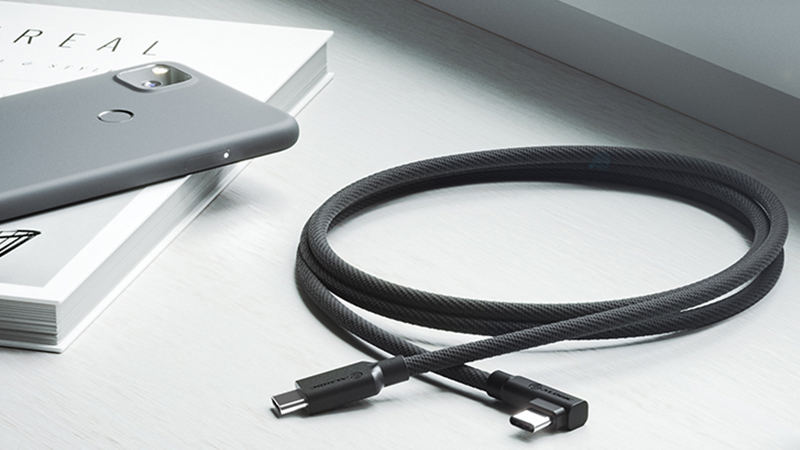
So first think about what the cable will actually be used for. For a phone, headphones, and other smaller devices, maximum power is rarely the most important thing. But if the same cable needs to charge a laptop, move large files, and maybe work with a display or docking station, you need to check power, data speed, and video support. Wattage is only part of the specification.
3. Don’t always blame the computer when file transfers are slow
You’ve connected a fast external SSD to a modern USB-C computer and started moving a few hundred gigabytes of photos or video. Then you sit there wondering why the transfer is running much slower than the SSD maker promised. It’s easy to suspect the computer or the storage device, but the culprit may actually be the cable between them.
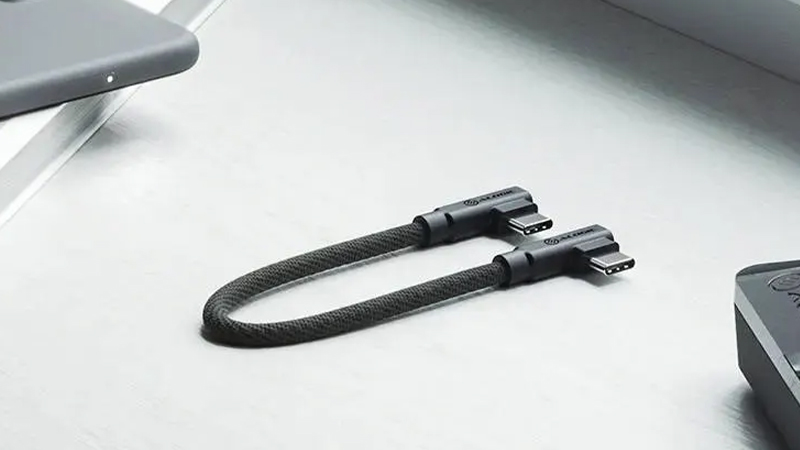
A standard USB-C charging cable, for example, may be limited to 480 Mbps, while a faster cable can handle 10 or 20 Gbps. In practice, several other factors affect the final speed, but the cable must at least support the same type of transfer as the devices you connect. If you regularly move large video files, back up a computer, or work directly from external storage, it’s worth having a cable that is actually designed for fast data transfer.
4. Don’t treat the cable like it’s indestructible
Cables often lead a pretty hard life. They’re coiled up, tossed into bags, trapped behind desks, and bent right where the cable meets the connector. A common mistake is unplugging by yanking on the cable instead of gripping the connector. Over time, that can damage both the cable and the connection.
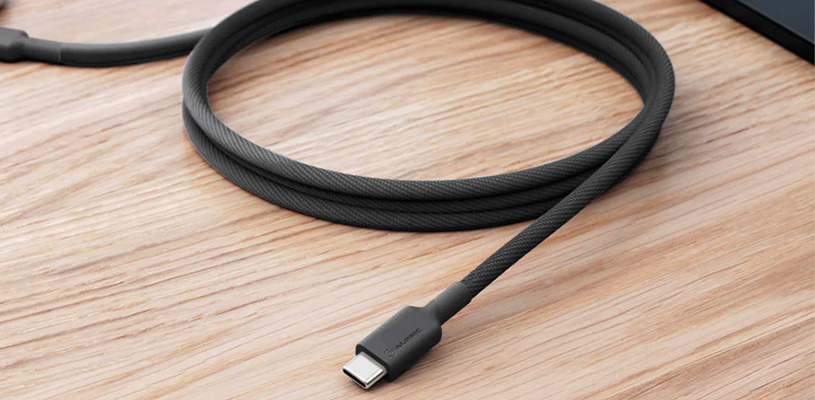
Also avoid wrapping the cable extremely tightly around the charger when you pack it away. A looser coil puts less strain on the conductors and, above all, on the area nearest the connector. A braided cable with proper strain relief can be more durable in daily use, but even a robust cable is better off not being sharply bent at the same point hundreds of times.
5. Don’t trap the charger where heat can’t escape
Chargers get warm. That’s normal, especially when a powerful charger is working close to its maximum output. What you should avoid is making it harder for the heat to dissipate. A charger buried under clothes, under a pillow, or wedged behind furniture has a much harder time getting rid of heat.
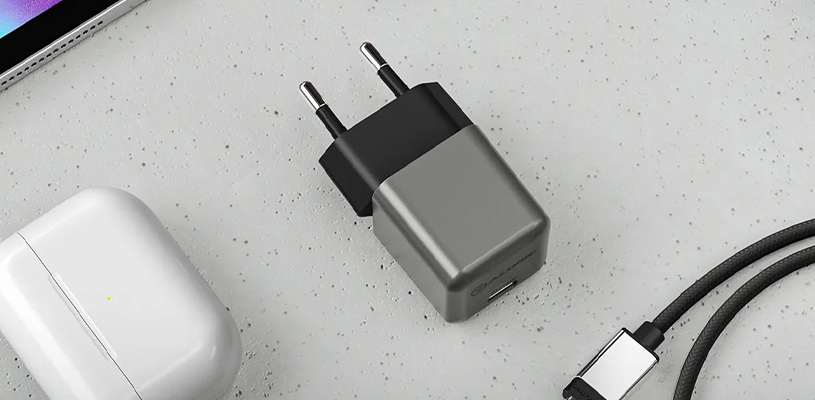
That’s also a good reason to be cautious with unknown and extremely cheap chargers and cables. USB-C and Power Delivery can handle fairly high power levels, which puts demands on the components. Choose products from established manufacturers, make sure the charger is rated for the device, and replace cables that show visible damage, deformed connectors, or have started to feel loose.
The right cable doesn’t have to be the most expensive one
It’s easy to assume you should always buy the fastest and most advanced USB-C cable you can find. That isn’t necessary. If the cable is going to sit on a nightstand and charge a phone, there’s very little reason to pay extra for 20 Gbps data transfer and support for an external 4K display.
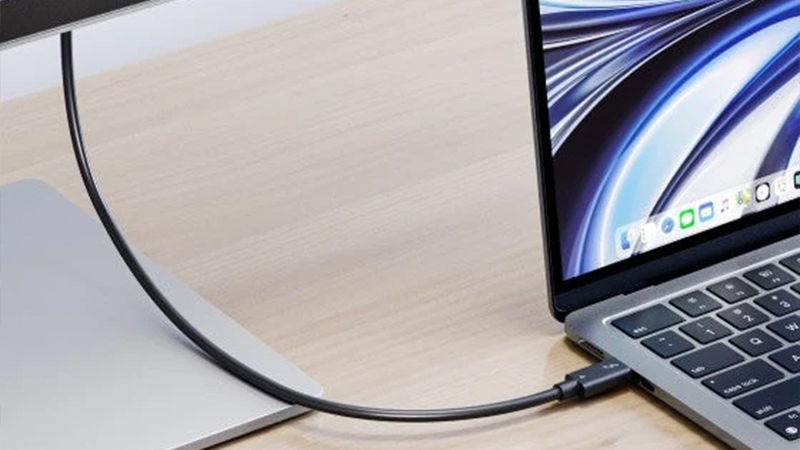
The smart move is to have the right cable in the right place. A simpler, durable USB-C cable may be ideal for everyday charging, while a more capable cable belongs in your laptop bag or on your desk, where it can be used with a laptop, SSD, docking station, and display. ALOGIC offers both simpler Elements PRO cables and more advanced models in the Fusion series, which also shows how different needs can be even when the connectors look exactly the same.
FAQ
Can all USB-C cables fast-charge?
No. How quickly a device charges depends on the cable, the charger, and the device itself. All three must support the required power. So a cable having USB-C connectors does not automatically mean it can handle the same charging power as another USB-C cable.
Can a USB-C cable be good for charging but bad for data?
Absolutely. That’s quite common. A cable can be designed for high charging power but only support relatively slow data transfer. ALOGIC Elements PRO is an example of a cable for everyday charging that is also limited to 480 Mbps data transfer.
How do I know if a USB-C cable supports an external display?
Check the cable’s specifications. Video support must be stated explicitly; you can’t assume it from the USB-C connector alone. ALOGIC Fusion Series USB-C 3.2 Gen 2, for example, has explicit support for video output up to 4K at 60 Hz.
Do I need a 100 W cable for my phone?
Usually not. The phone decides how much power it draws, and most phones are far below 100 W. A cable with higher power capacity can still be useful if you want to use the same cable for a phone, tablet, and laptop.
When should I replace a USB-C cable?
Replace the cable if the connector is damaged, the cable jacket has cracked, wires are visible, or the connection has started to feel loose. Unusual heat can also be a warning sign. A cable used and carried every day should also be checked regularly.