
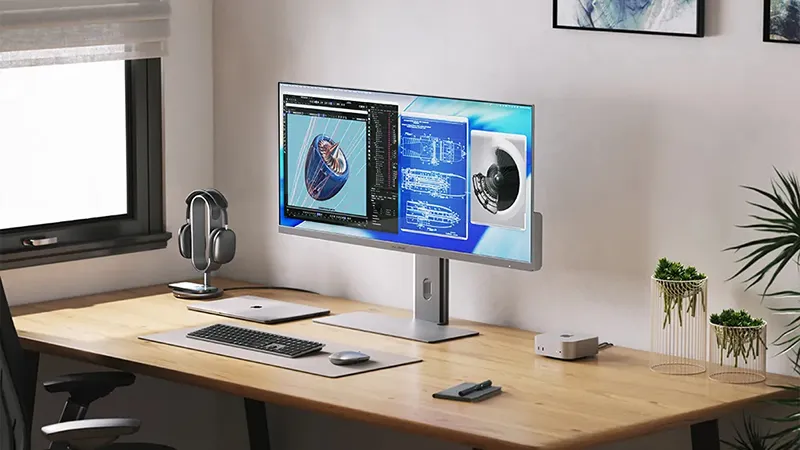
It’s easy to start looking at a new computer when your workspace feels slow, cramped, or simply not very pleasant to use. But many times, the computer isn’t actually the problem. It’s everything around it.
A better screen, a more comfortable working position, and a little less cable clutter can make a bigger difference to your workday than a few extra percentage points of processor performance. Before you start thinking about replacing your computer, it may be worth reviewing the workspace itself. Here are a few changes that can make it much more pleasant to use.
Start with the screen
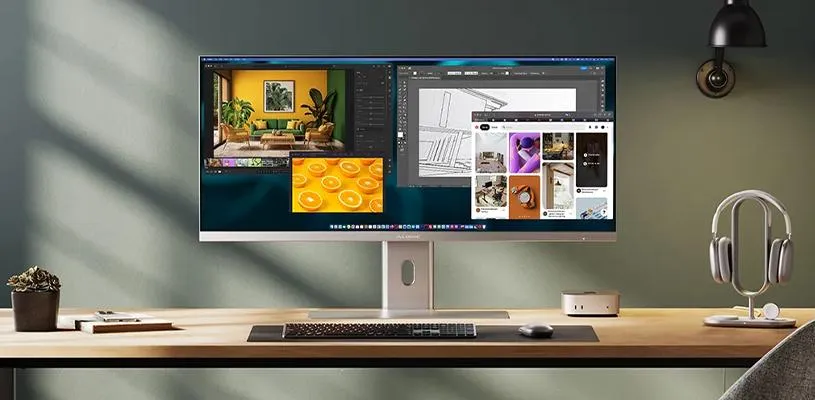
A laptop is great when you’re on the go, but a 13- or 14-inch screen is not always quite as great when you’re spending eight hours working in front of it. A larger external screen simply gives you more room for browsers, documents, Slack, and everything else that usually ends up on the desk.
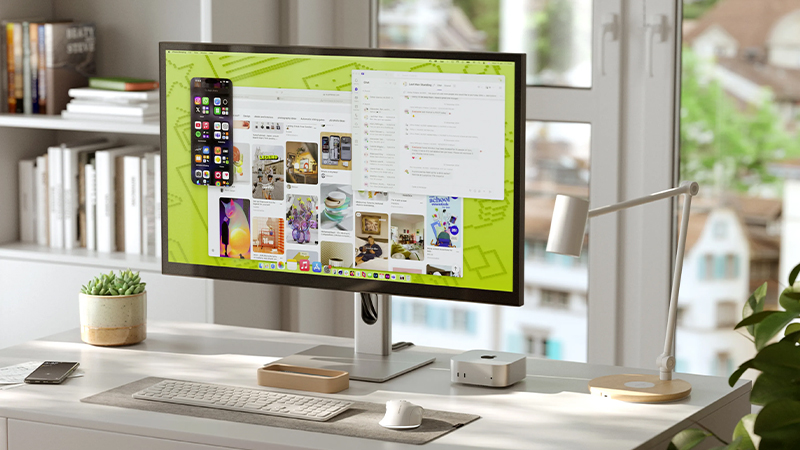
It doesn’t have to be about having as many screens as possible, either. A larger 4K screen or ultrawide model can provide plenty of workspace without turning your desk into a control center. Alogic, for example, has screens with USB-C that can transmit video while also charging compatible laptops, which also helps with the next problem: all the cables.
Move the computer off the desk
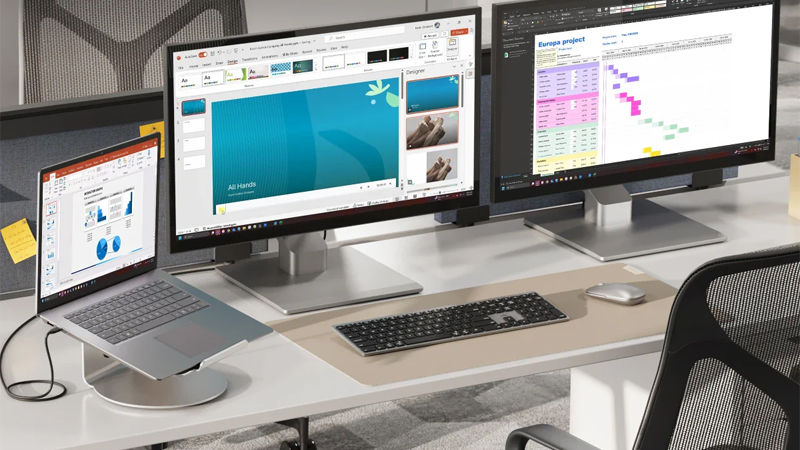
If you work directly on a laptop, the screen is often much lower than is comfortable over a full workday. A simple laptop stand can therefore be a surprisingly big upgrade. Raising the screen makes it easier to find a comfortable position for your neck and back.
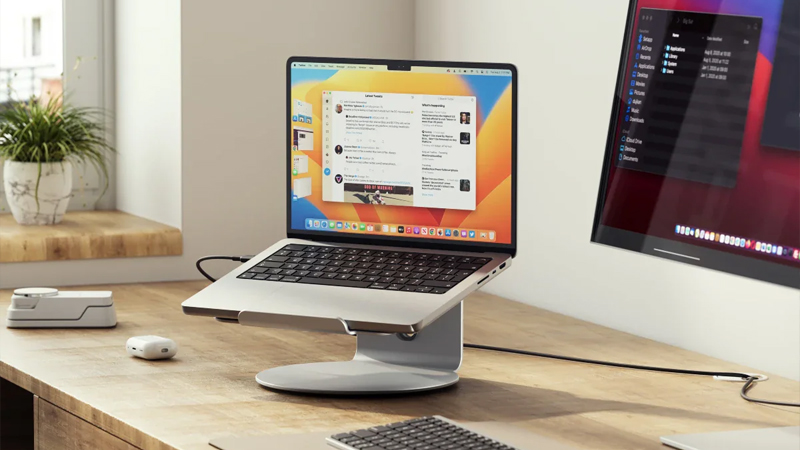
Alogic Elite Plus, for example, is adjustable in both height and angle and fits most laptops. Combine a laptop stand with a separate keyboard and mouse, and the computer can still be used as an extra screen while the main workspace becomes much more comfortable.
Bring the desk together with one cable
The classic laptop desk often starts quite innocently. Then come the charger, the screen, the keyboard, the mouse, the network cable, and the external SSD. Suddenly, five things need to be unplugged every time the computer has to come along.
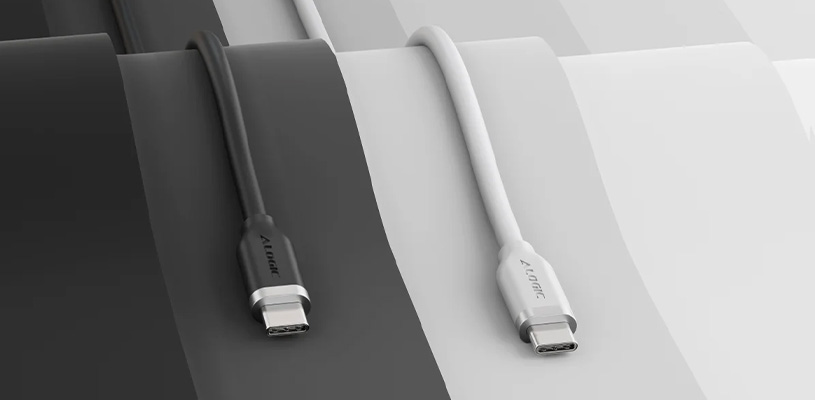
A docking station can gather much of this into a single connection. Alogic USB-C Dock PLUS V2, for example, can connect screens, Ethernet, USB accessories, and memory cards while a compatible laptop can be charged with up to 100 W. In practice, that may mean you only need to unplug one USB-C cable when it’s time to leave.
Give the small items a fixed place too
The phone, headphones, and other small items also add to the clutter. Separate charging cables work, of course, but a dedicated charging spot on the desk makes it easier to put things down and actually find them again.
Wireless charging can be especially practical here. Alogic Matrix 2-i-1, for example, combines MagSafe-compatible charging for the phone with Qi charging for one additional device. The idea isn’t to fill the desk with even more accessories, but to give each item a clear function and place.
A better computer without replacing the computer
The great thing is that almost all of these changes can be kept the next time the computer actually needs to be replaced. The screen, stand, keyboard, charger, and docking station become part of the workspace rather than part of a specific computer.
So before you start comparing processors and wondering how much RAM your next laptop should have, it may be worth looking at the desk in front of you. Sometimes the best computer upgrade is simply making the computer you already have more pleasant to use.
FAQ
Do I need an external screen for my laptop?
No, but if you work long days at the same desk, a larger screen can give you more workspace and a more comfortable working position. You can also use the laptop’s own screen as a secondary display.
What’s the benefit of a laptop stand?
An adjustable stand can place the screen higher and closer to a natural eye level. With a separate keyboard and mouse, you also don’t have to adapt your arms to the computer’s new position.
What does a USB-C docking station do?
It combines several connections into one device. Depending on the model, a screen, USB accessories, Ethernet, memory cards, and charging can all run through the same USB-C connection to the computer.
Can USB-C charge the computer and transmit video at the same time?
Yes, on compatible computers, screens, and docks, USB-C can handle video, data, and Power Delivery. But always check which functions your computer’s USB-C port supports.
What should I upgrade first?
Start with what bothers you most. Too little workspace points to a screen, an uncomfortable working position points to a stand and peripherals, while cable clutter can often be solved with a docking station.