
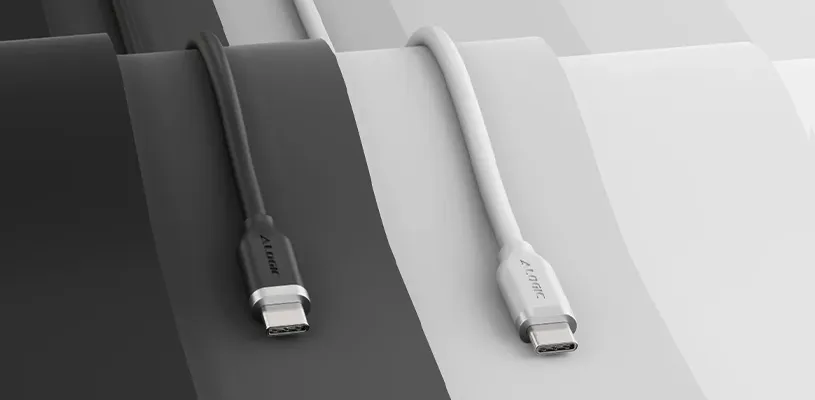
USB-C looks simple on the surface. The same small connector at both ends, reversible and convenient. But here comes the classic tech trap: not all USB-C cables do the same thing. One cable may be perfect for charging your phone, while another can handle an external SSD, a display, a dock, and high power for a MacBook.
USB-C is the connector, not the full story
The key thing to understand is that USB-C only describes the connector itself. It does not automatically tell you how fast the cable is, how much power it can handle, or whether it can send video to a display.
So two cables can look almost identical but differ greatly in performance. A simpler USB-C cable may be perfectly fine for charging headphones or a phone, while a more advanced cable is needed if you want to move large files, drive a display, or charge a laptop at high power.
Charging, data, and video need different things
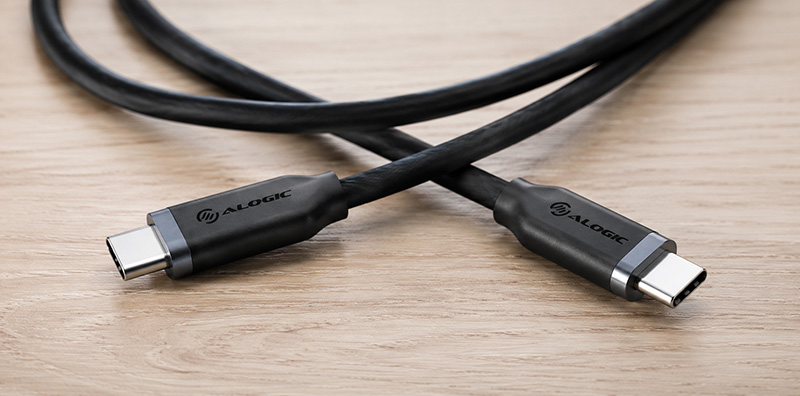
For everyday charging, wattage is often what matters most. A USB-C cable that supports 100 W charging is a good fit for many laptops, docks, and more powerful chargers. If you are only charging an iPhone or iPad, you usually do not need to max everything out.
Data is a different matter. USB 2.0 is slow but works for basic syncing and charging. USB 3.2 Gen 2 delivers much higher speeds and is better suited to external SSDs, large photo libraries, and video files. For more demanding workflows, 20 Gbps can be the difference between “this is running smoothly” and “I can make coffee while the files move”.
Video output also requires the right cable or adapter. If you want to connect a USB-C device to an HDMI display, the cable or adapter must explicitly support video, such as 4K at 60 Hz.
USB-C vs Thunderbolt - what's the difference?
Thunderbolt often uses the USB-C connector, but it is a more advanced standard. It can handle fast data, video, and power in the same cable, but both the cable and the devices must support it.
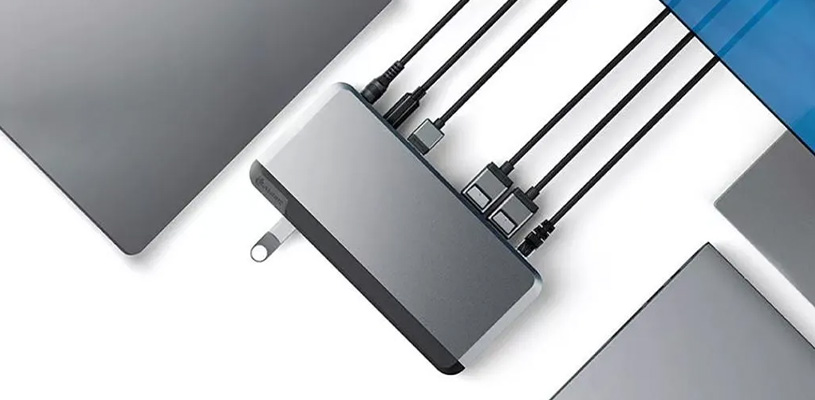
For many people, a good USB-C cable goes a long way. But if you run an external display, fast storage, a dock, and a MacBook in the same setup, it is worth checking the specifications before ordering the first cable you see. Cheap no-name cables can also vary in quality, especially when it comes to high power and heat.
How to choose the right USB-C cable
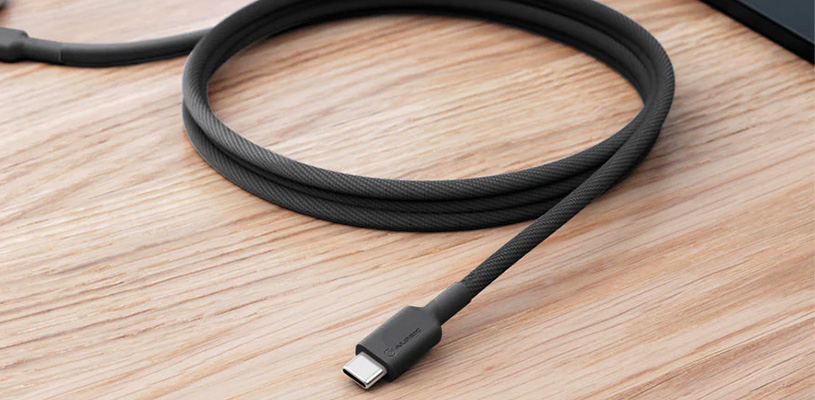
Think about what the cable actually needs to do. For charging: look at wattage. For file transfer: look at Gbps. For a display: check video support. For travel and everyday use: choose a durable braided cable that can handle a bit more than desk life alone.
A short cable can be handy with a power bank or dock, while a longer cable works better at a desk. But the longer the cable, the more important quality becomes if you want to maintain high speed and a stable signal.
FAQ
Do all USB-C cables work the same way?
No. They can differ in charging, data speed, and video support.
What does USB-C 100 W charging mean?
It means the cable can handle up to 100 watts, which is suitable for many laptops and more powerful chargers.
What is USB 3.2 Gen 2?
It is a USB standard with higher data speeds than basic USB cables, making it well suited to external SSDs, for example.
Is USB-C the same as Thunderbolt?
No. Thunderbolt often uses the USB-C connector, but it has higher requirements and more features.
Which USB-C cable should I choose for a MacBook?
Choose a cable with high power, good data speed, and preferably video support if it will be used with a display or dock.